Switch the app on in your theme
An app embed is how a theme lets an app add something to every page. Findel's embed loads the search pop-up, and it is what makes the next two steps possible: replacing your theme's own search box cannot work without it.
The quick way: from the setup guide
- In the Findel app, open Home.
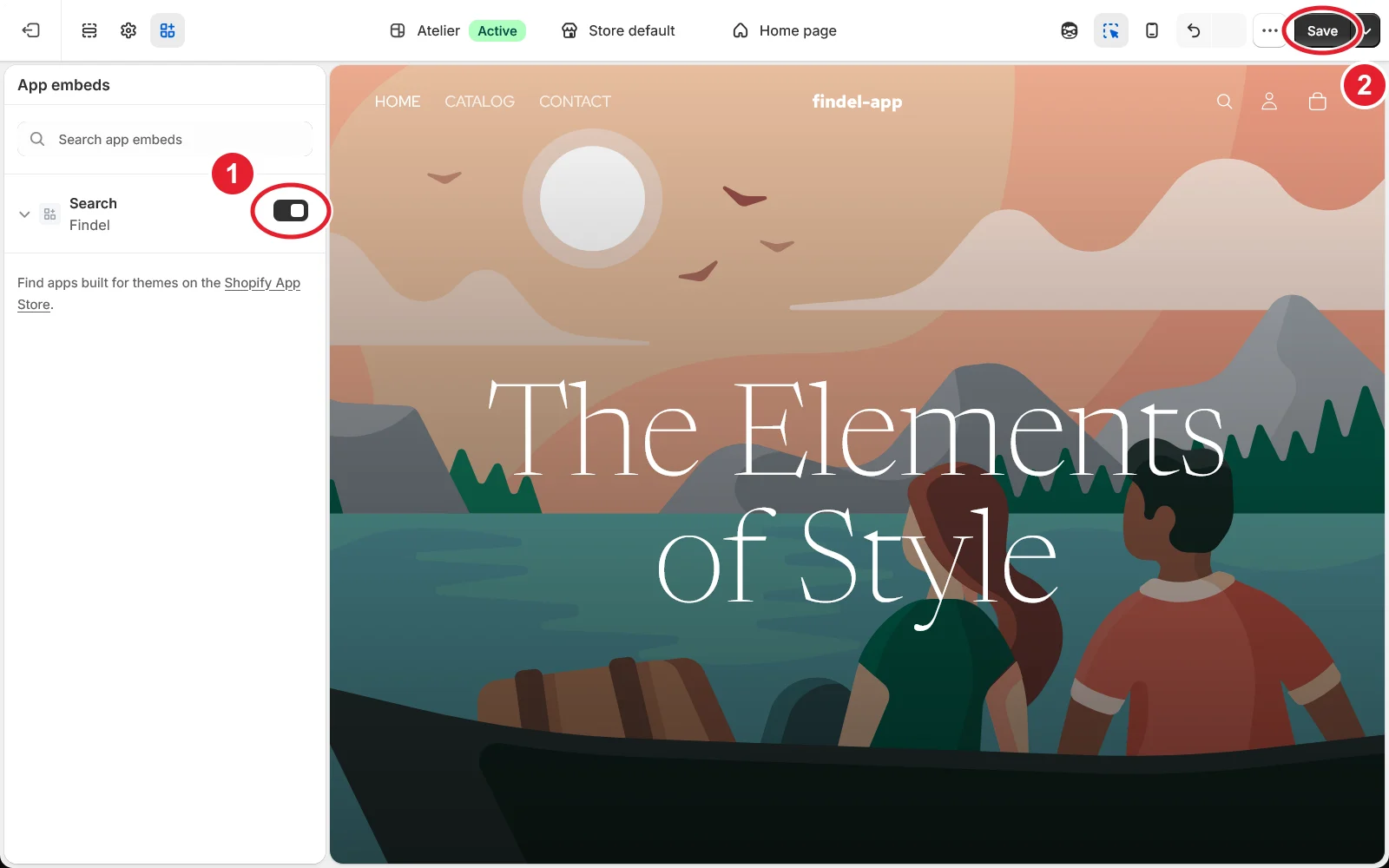
- In the setup guide, press Open the theme editor. Shopify's theme editor opens on App embeds.
- Find Search (listed with Findel under it) and switch it on. It may already be on.
- Press Save, top right. Unsaved is not live.
Go back to the app: the step ticks itself.
By hand, from the Shopify admin
- In your Shopify admin, go to Online Store → Themes.
- On the theme you want to set up, press Customize. To set up a copy before it goes live, use Customize on that copy instead of the published theme.
- In the theme editor's toolbar at the top left, choose the App embeds icon (the third icon, after Sections and Theme settings).
- Switch on Search (Findel).
- Press Save, top right.
Turning the embed on does not put a search box anywhere by itself. That is the next step. What it does is make search available on every page.
If it doesn't seem to work
- The step doesn't tick. Check that you pressed Save, and that you switched the embed on in the theme the setup guide is checking. Placements and embeds belong to one theme.
- It worked, then stopped after a theme change. A newly published theme starts with its own embeds switched off. Your Findel settings are intact: switch the embed on in the new theme.
- Custom CSS has no effect. Custom CSS is delivered by the app embed, so it reaches nothing until the embed is on.