Own the search results page
Shoppers reach /search without using your search box at all: from a bookmark, from Google, from an old link. Until this step they land there and see your theme's own keyword results, not Findel's, which makes search look inconsistent for reasons a shopper cannot see.
From the setup guide
- In the Findel app, open Home and press Open the search page in the setup guide. You can also use the results-page row under Settings → Storefront.
- The theme editor opens on your Search template with Findel's Search Results block added.
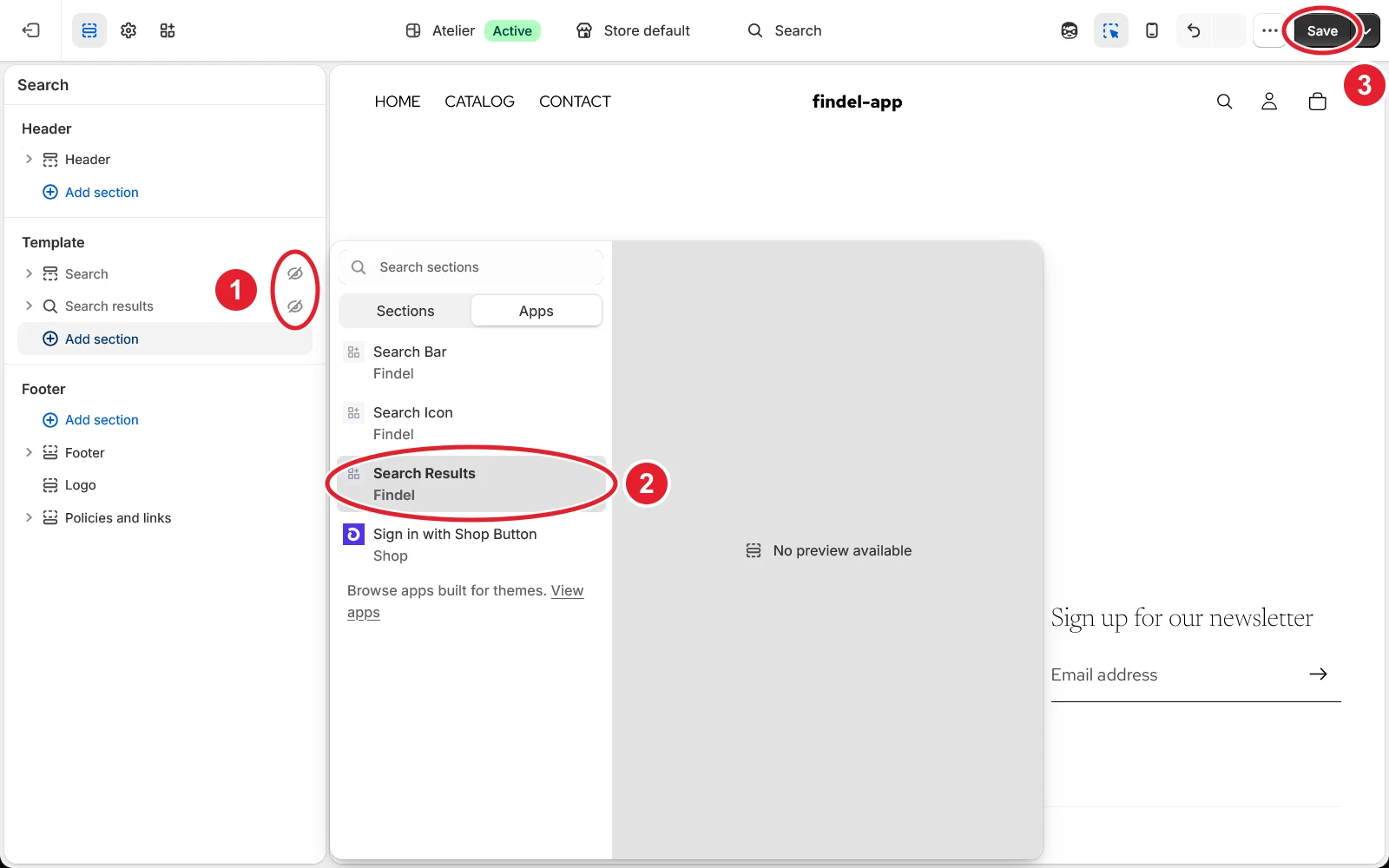
- In the left sidebar, under Template, hide your theme's own search sections with the eye icon next to each (it appears when you point at the section). Otherwise the page shows two lists of results.
- If Findel's block is not on the page yet: press Add section, open the Apps tab and choose Search Results (Findel).
- Press Save, top right.
Come back to the app: this step ticks itself once the app can see Findel's results on /search.
By hand, from the Shopify admin
- Go to Online Store → Themes and press Customize on your theme.
- In the page picker at the top of the theme editor, choose Search.
- Follow steps 3 to 5 above.
Findel needs an Online Store 2.0 theme: one that lets apps add blocks in the theme editor. An older (vintage) theme isn't supported. Contact us from Help → Contact in the app, or at support@findel.ai, and we'll help.
After this step
The results page's layout, filters and product cards are set in the app under Appearance. To bring over filters you already use in Shopify Search & Discovery, use Bring over your store's filters on Home.